How to connect Muse to WhatsApp
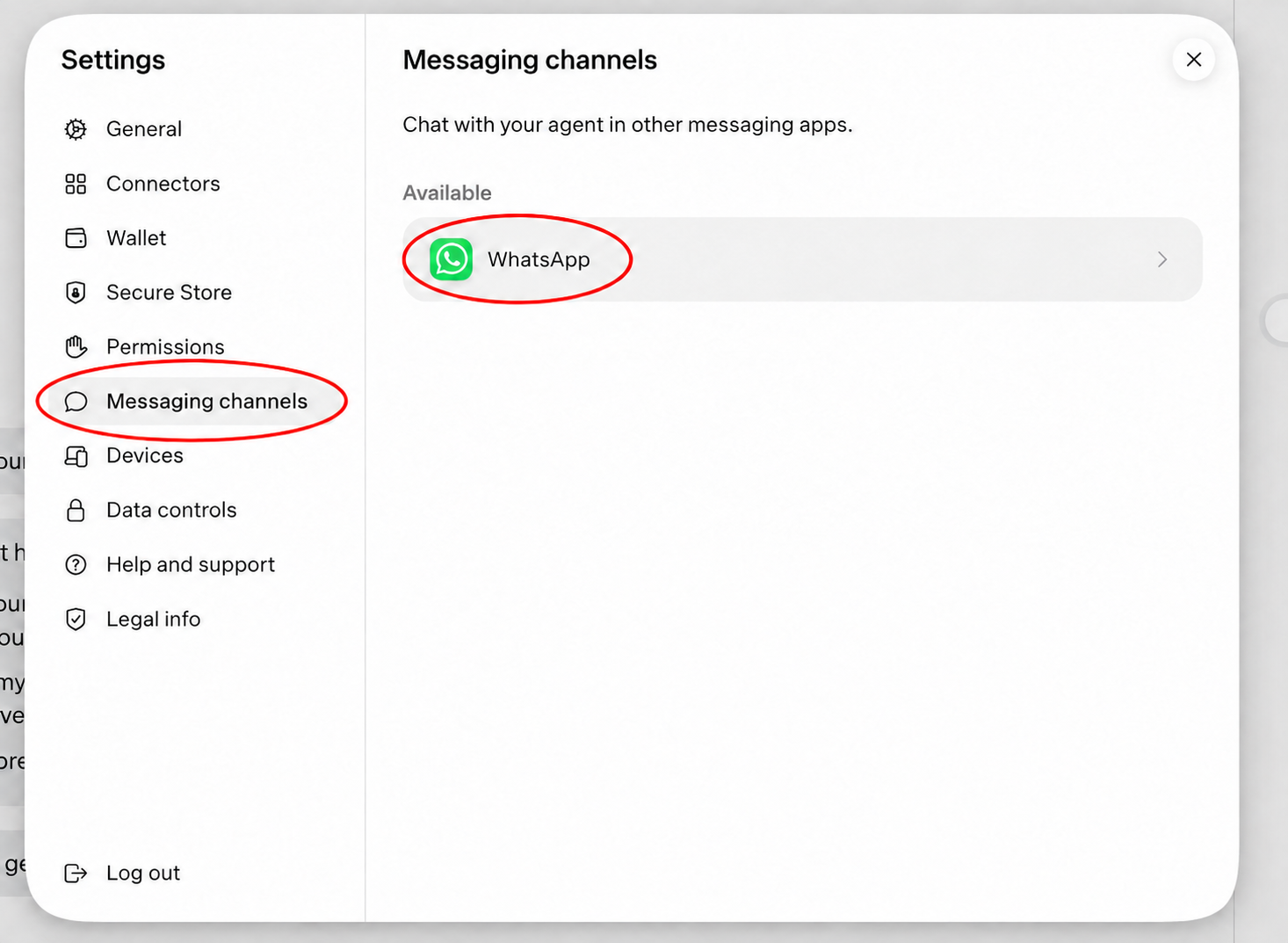
Open Muse → Settings → Messaging channels → WhatsApp. Follow Muse’s setup prompts, then use WhatsApp on your phone to scan the QR code shown in your own Muse account.
Before you start
Sign in to Muse’s official website and have WhatsApp available on your phone. You need access to your Muse account first; this independent website cannot link accounts or generate a setup QR code.
If you used a VPN for your first Muse login, keep it connected while finishing that setup. This reflects my experience in Bangalore, not a statement that VPN access is officially supported. Account and regional restrictions still apply.
Where is Messaging channels?
Open the bottom-left two-line menu, select Settings, and choose Messaging channels in the sidebar. Under Available, select WhatsApp. Both controls are circled in the screenshot below.
What do I do with the QR code?
Continue through the WhatsApp setup prompts inside Muse. When Muse displays your QR code, scan it using WhatsApp on your phone and follow the instructions on both screens. Review any connection permissions before confirming.
The screenshot on this page shows only where to begin. It is not a QR code and cannot connect your account. Don’t scan someone else’s setup code or publish your own account-linking code.
What if WhatsApp isn’t listed?
Confirm you are in Messaging channels, not General. If the option is still absent, the screenshot alone cannot establish the cause. Check the current instructions in Muse’s Help and support area rather than assuming a referral code will unlock the feature.
Can I use WhatsApp without installing the Muse app?
The screenshot shows a WhatsApp setup entry in Muse’s web interface. You can try that route if you have web access but cannot install Muse from your app store. Successful linking and continued access still depend on Muse’s account and regional requirements.
After setup, try a simple message to confirm the connection. A visit to this guide or a click on WhatsApp is not proof that linking has completed.
Sources: the code owner’s setup experience and screenshot. For current account-specific instructions, use Muse → Settings → Help and support.